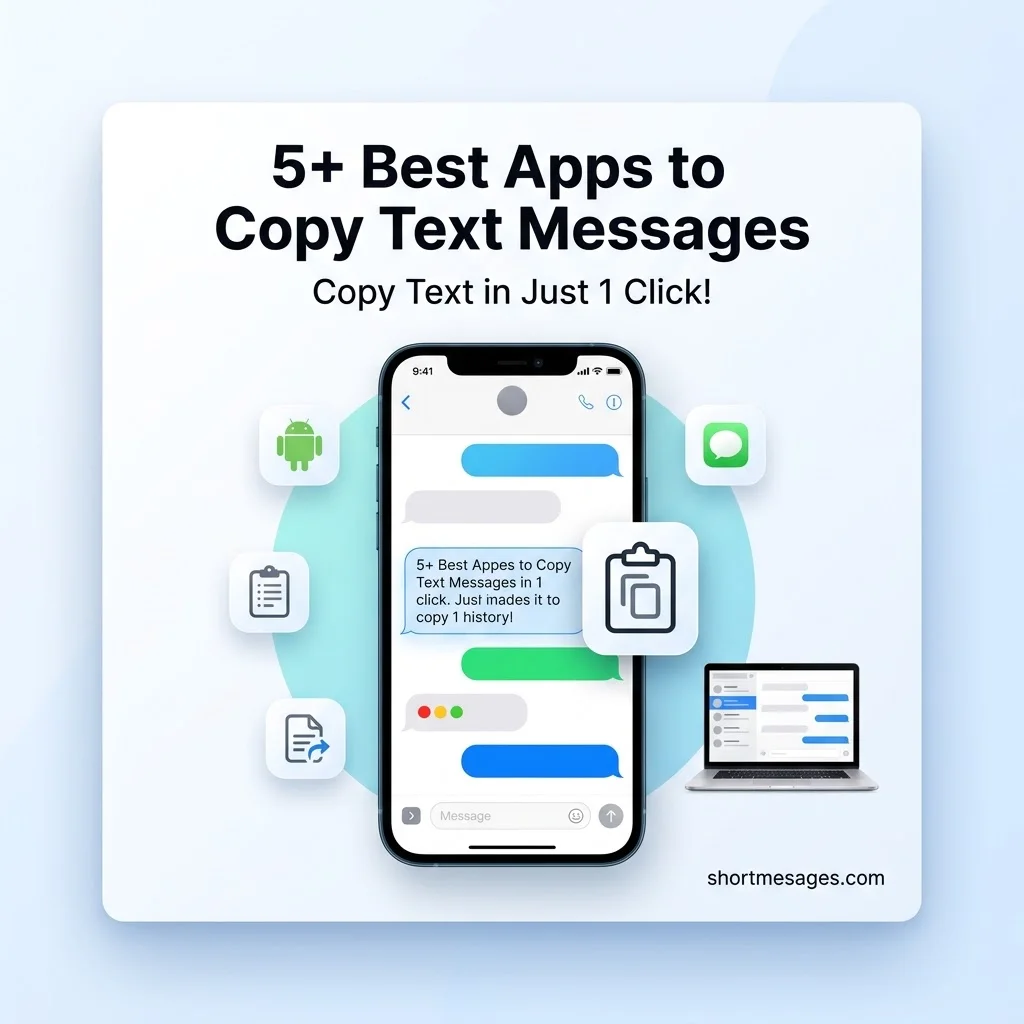
Need to copy a text fast? Maybe it’s a code, an address, or a long chat you want to keep. The right Short apps to copy text messages saves you a lot of tapping.
Texting is a daily habit. A Pew Research Center survey found that text users send or receive an average of 41.5 messages on a typical day. That is old data (2011), but the habit has only grown. Below are six easy apps and tools for Short Apps to copy text messages in 1 click, on Android and iPhone.
Table of Contents
Best Apps to Copy Text Messages in 1 Click
These tools are quick, simple, and trusted by many US users. Each one fits a different need, such as copying a single text, saving a full conversation, or pulling text from a screen that blocks copying.
If you’re looking for meaningful words to share with your loved ones, finding the right message can make all the difference. Explore these heartfelt messages for sons to express your love, pride, and support in a simple yet memorable way.
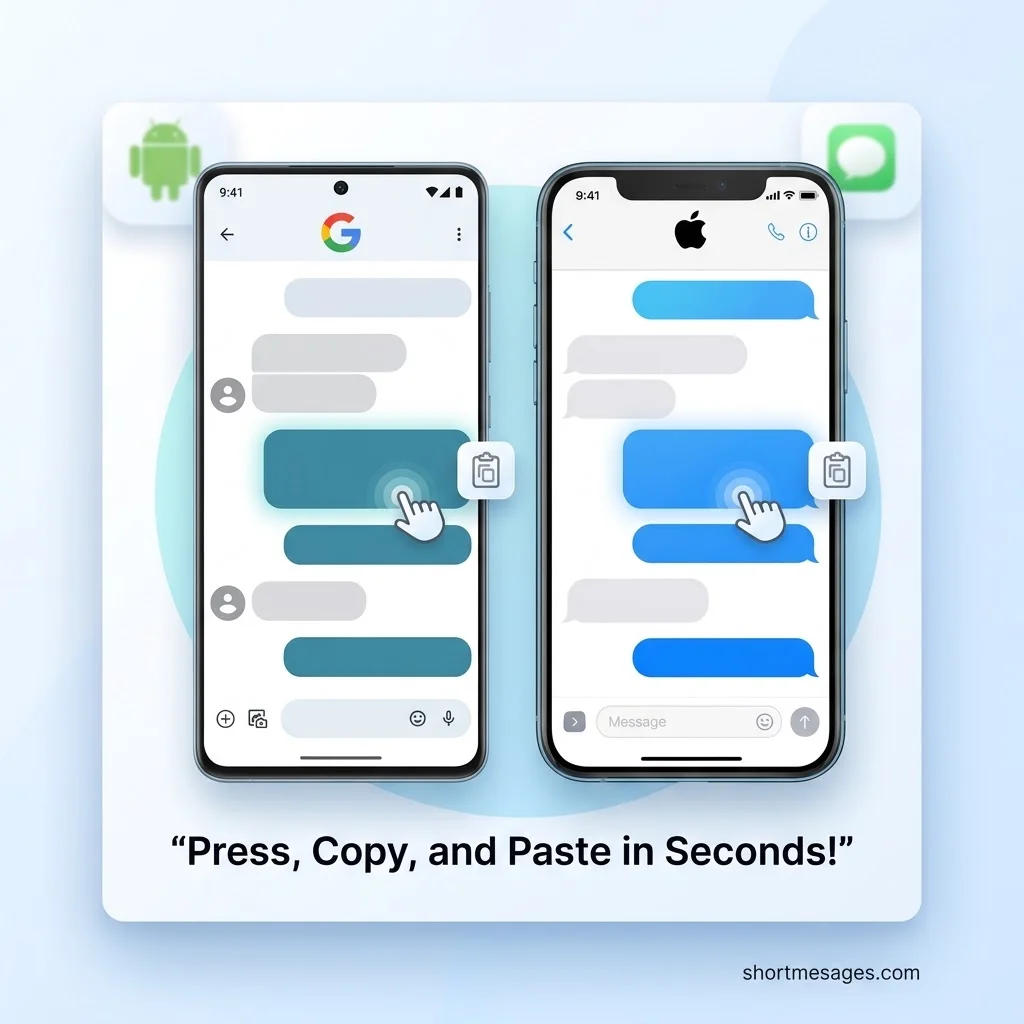
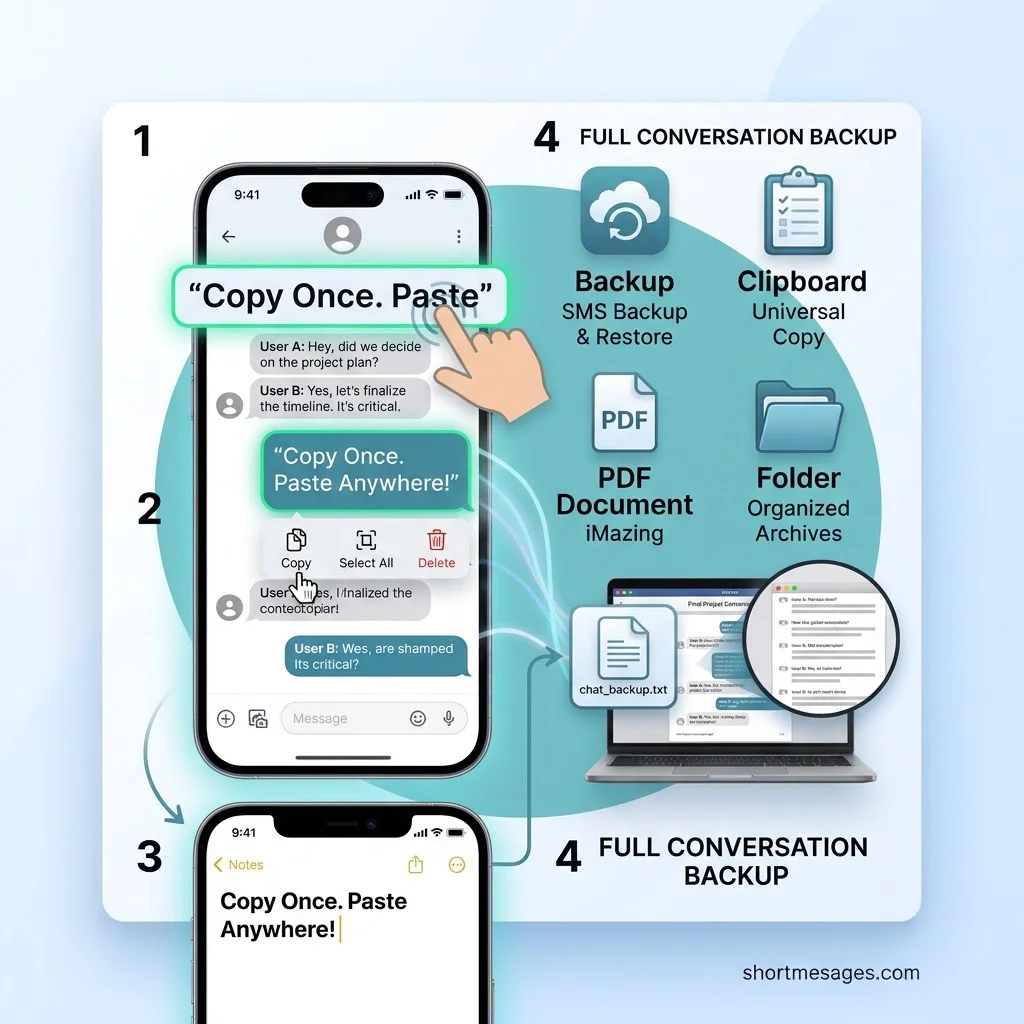
Google Messages (Android). Press and hold a text, then tap the copy icon. Tap more bubbles first to copy multiple text messages at once. It is free and built into most Android phones.
Apple Messages (iPhone). Touch and hold a bubble, then tap Copy. It also works with Live Text, so you can copy words from a photo inside a chat.
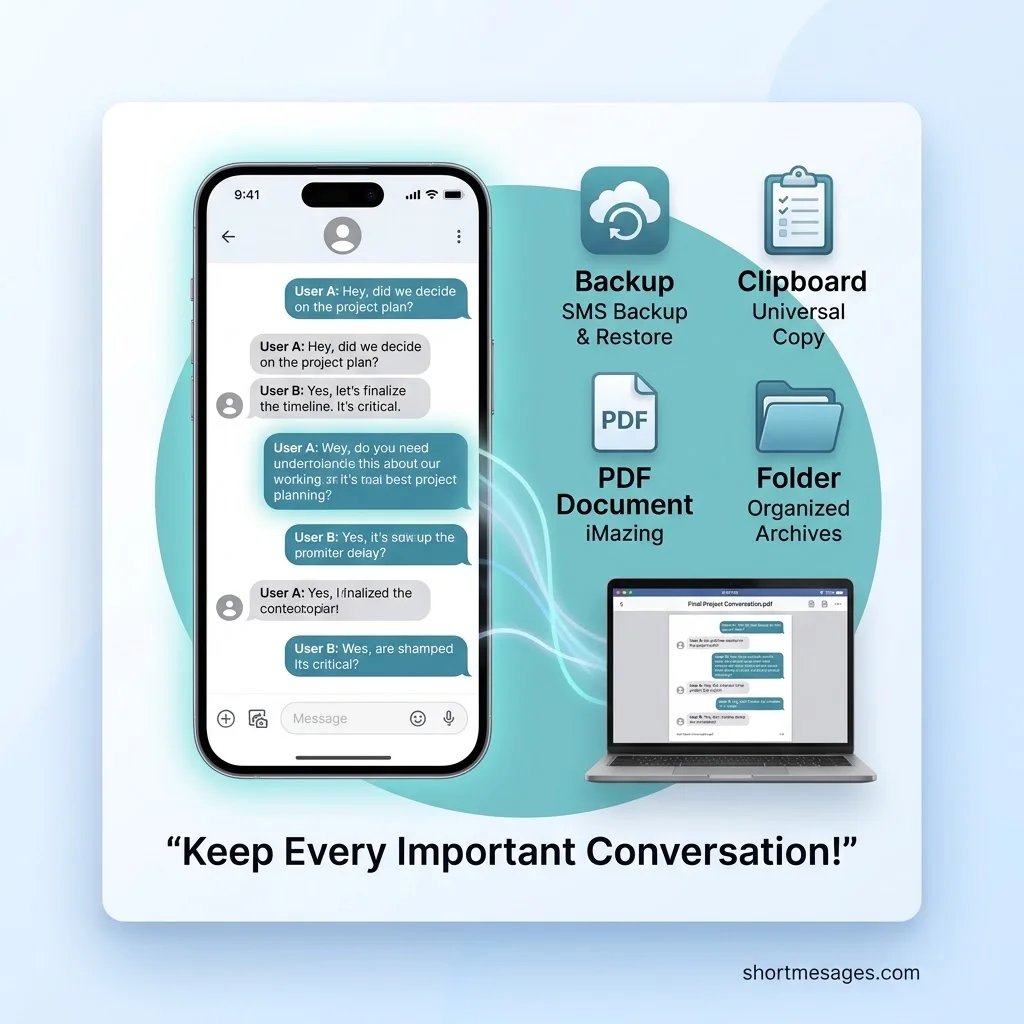
SMS Backup & Restore (Android). This app backs up SMS, MMS and call logs in XML format. You can pick which conversations to back up, and view the file on a computer. Get it on Google Play. Text Messages in 1 Click
Universal Copy (Android). Some apps will not let you select text. Universal Copy reads the screen and lets you copy text from any app. It is a good fix when a normal copy fails.
Gboard Clipboard (Android and iPhone). The Google keyboard keeps a clipboard history of what you copy. Pin the texts you need so you can paste them later. Unpinned items clear after a short time.
iMazing (iPhone, with Mac or Windows). This desktop tool exports iPhone text messages to your computer. You can save them as PDF, spreadsheet, or text files. It suits long threads and records.
| App | Platform | Best for |
|---|---|---|
| Google Messages | Android | Copying one or many texts |
| Apple Messages | iPhone | Copying texts and image text |
| SMS Backup & Restore | Android | Saving full conversations |
| Universal Copy | Android | Copying blocked text |
| Gboard Clipboard | Android, iPhone | Keeping copied texts handy |
| iMazing | iPhone + computer | Exporting whole threads |
How to Copy a Text Message and All Texts at Once
Copying one text takes seconds. Copying a whole chat takes a few more steps, but it is still simple.
To copy a text message on Android, press and hold the bubble, then tap the copy icon. On iPhone, touch and hold the bubble and tap Copy. Then paste it anywhere.
To copy all text messages in a thread:
- On Android, use SMS Backup & Restore to save the chat as a file.
- On iPhone, use iMazing to export the thread to your computer.
- For a quick option, take scrolling screenshots, or email the chat to yourself.
Need proof of a chat for work or a dispute? Save it with its date and time stamps. An exported file keeps them. A plain copy often drops them.
How to Choose a Text Copy App
Not every app fits every phone or need. A quick check helps you pick well.
Look at these points:
- Platform: Pick an app made for your phone, Android or iPhone.
- Speed: The best apps need one or two taps.
- Full-thread export: Choose this if you want to keep entire chats.
- Price: Many tools are free, but some limit exports.
- Privacy: Texting apps ask for access to your messages. Read the permissions before you install, and download only from the official store.
Treat copied texts with care. They may hold bank codes or personal details. Delete saved copies you no longer need.
FAQs
Is there an app to copy text messages?
Yes. Google Messages and Apple Messages have built-in copy tools. For saving full chats, try SMS Backup & Restore on Android or iMazing on iPhone. Universal Copy helps when an app blocks text selection.
How can I copy all text messages?
Use an export tool. On Android, SMS Backup & Restore saves your texts to a file. On iPhone, iMazing exports threads to your computer as PDF, text, or spreadsheet files. You can also email a chat to yourself.
How do I copy a text message?
Press and hold the message bubble. Then tap the copy option. On iPhone, tap Copy. On Android, tap the copy icon at the top. Paste it into any app or note.
Which app is best for copy and paste?
For quick copying, the built-in Messages app on your phone is best. For saving whole chats, SMS Backup & Restore (Android) or iMazing (iPhone) works well. Gboard Clipboard helps you keep several copied texts ready.
Conclusion
The best way to copy text messages in one click depends on your phone and your goal. Use your built-in Messages app for single texts. Pick SMS Backup & Restore, Universal Copy, Gboard, or iMazing for bigger jobs. Choose one, test it, and keep your copies safe.

Founder & Content Writer, ShortMesages.com
William Sanwal is the founder and lead writer behind ShortMesages.com, a website dedicated to helping people find the right words for every moment in life.