Texting from a computer feels natural once you set it up. Google Messages for Desktop lets you type on a full keyboard instead of a tiny phone screen, and it takes less than two minutes to connect.
This guide covers setup, key features, real troubleshooting fixes, and a ready-made list of over 100 short messages you can copy and send in seconds.
Table of Contents
What Is Google Messages for Desktop
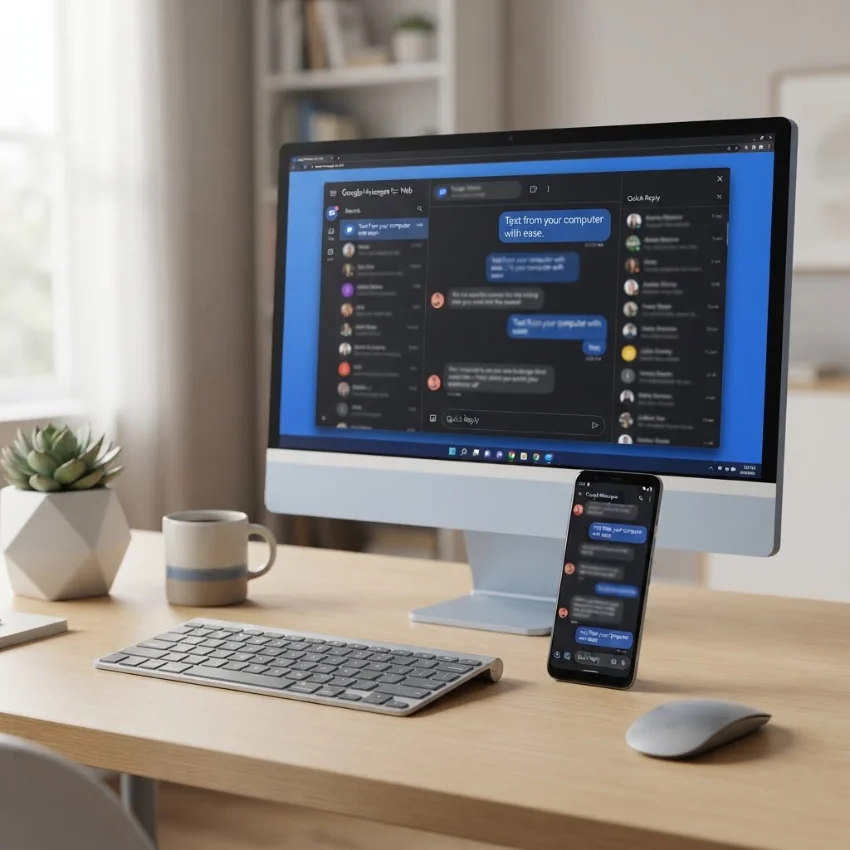
Google Messages for Desktop is simply a way to read and send texts from your computer instead of your phone. It works through your Google account, so nothing new needs to be installed on your phone.
Must visit: 100+ Short Baby Shower Messages for Cards To Celebrate the Parents-to-Be & New Arrival
Google Messages for Web vs Google Messages for Desktop
Google Messages for Web is Google’s own browser tool, found at messages.google.com/web. It runs inside Chrome, Firefox, Safari, or Edge, and it mirrors whatever is already on your phone’s messaging app. Nothing gets stored permanently on Google’s servers, since your phone stays the actual sender and receiver.
Google Messages for Desktop, on the other hand, usually refers to third-party apps that wrap this same web tool into a standalone program. One well-known example is the open-source project on GitHub by developer kelyvin, built with Nativefier and Electron. It gives you a dedicated icon and native notifications, but it is not made or owned by Google. The project’s own README states plainly that it is “not an official product of Google.”
Is There a Google Messages App for PC
Yes, but with a catch. Google has not released a standalone Windows, Mac, or Linux app under its own name. What exists instead are browser-based tools and community-built wrappers. Google Messages itself is a massive product — it has passed 10 billion installs on the Play Store, and Google reports roughly 110 million daily active users in the US alone. That scale is why so many independent developers have built desktop versions around it.
How to Add Google Messages to Your PC
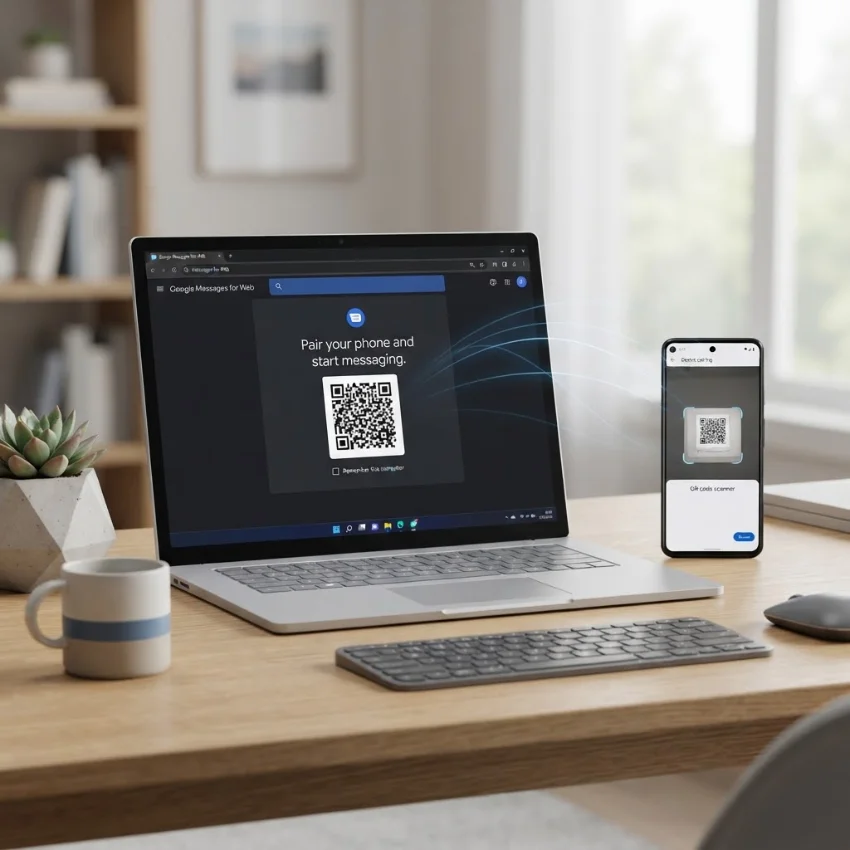
Getting started takes just a few steps, and no downloads are required if you use the official web version.
How Do I Add Google Messages to My PC
Open Google Messages on your phone, tap your account icon, then choose Device Pairing. On your computer, open a browser and go to messages.google.com/web. Sign in with the same Google account, then scan or confirm the pairing prompt. Your threads will load within seconds, and your phone stays the actual network connection, so regular carrier text rates still apply.
How to Create a Shortcut to Google Messages on Your Desktop
In Chrome, open Google Messages for Web, click the three-dot menu, then select Cast, save, and share, followed by Install page as app. This drops a proper icon on your desktop or taskbar that opens like any other program. Firefox and Edge offer a similar “pin to taskbar” or “install site” option in their own menus.
Pairing Your Phone with Google Messages for Web
One important update: QR code pairing has been discontinued in the US. Google now uses the account-based device pairing method described above instead. If you’re on a shared or public computer, always unpair when finished — this stops others from seeing message previews or two-factor codes that might arrive by text.
Best Features of Google Messages for Desktop
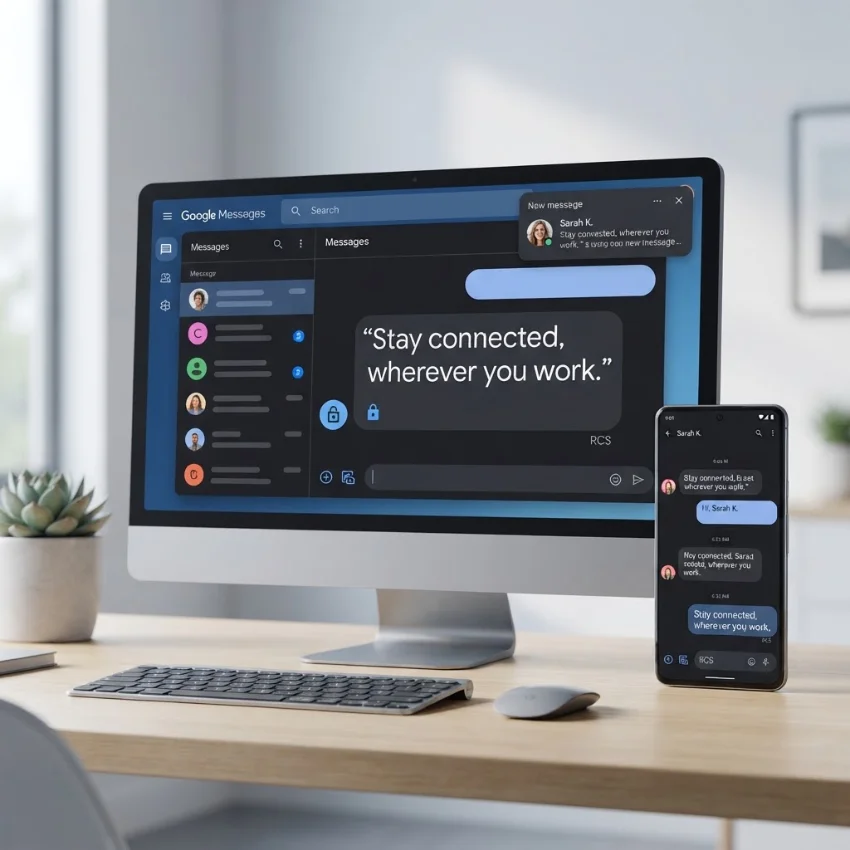
Beyond just typing on a keyboard, this setup unlocks a handful of genuinely useful extras.
Native Notifications and Unread Badges
Desktop wrapper apps use your operating system’s built-in alert system, so a new text pops up the same way an email or calendar reminder would. The browser tab also shows a small red counter with your unread message total, which is handy if you keep dozens of tabs open.
Dark Theme RCS Chat and Cross Browser Support
Google Messages supports RCS (Rich Communication Services), the modern replacement for plain SMS. RCS allows higher-resolution photos, typing indicators, and read receipts, and it now works with iPhone users too since Apple added RCS support in 2024. Globally, Google reports over 14 billion RCS messages sent through its platform every single day. On the desktop side, a simple toggle under the three-dot menu switches on dark theme, and the web client runs fine across every major browser, not just Chrome.
Security Tips Encrypted Cache and Unpairing
Your recent conversations get cached in an encrypted format inside the browser, which keeps things fast without exposing raw text data. Google Messages also uses end-to-end encryption between Messages users on RCS chats, meaning not even Google can read the content. Still, the golden rule stands: unpair on any computer you don’t personally own.
100+ Short Google Messages for Desktop
These are quick, ready-to-send texts, organized by situation. Just tap copy and paste them straight into your chat.
Good Morning and Good Night Messages
Good morning! Hope your day starts smooth.
Rise and shine, sunshine.
Morning! Coffee first, questions later.
Wishing you a bright and easy morning.
Good morning, have a great one today.
Wakey wakey, the world’s waiting on you.
Morning! Let’s make today count.
Sending good vibes to start your day.
Good morning, sleep well?
New day, new chance, good morning.
Good night, sleep tight.
Sweet dreams, talk tomorrow.
Night night, rest up.
Off to bed, night!
Good night, see you in the morning.
Sleep well, you earned it.
Goodnight, don’t let the bugs bite.
Resting now, catch you tomorrow.
Wrapping up the day, goodnight.
Sleep tight, big day ahead tomorrow.
Running Late and Work Status Messages
Running a few minutes late, be there soon.
Stuck in traffic, on my way.
Sorry, running behind, 10 more minutes.
Almost there, just parked.
Heads up, I’ll be about 15 minutes late.
On my way now, traffic’s slow today.
Quick delay, still coming.
In a meeting, will call you back.
Working late tonight, might miss dinner.
At my desk, what’s up?
Heading into a call, text you after.
On lunch, free to chat now.
Wrapping up work, home soon.
Busy right now, can we talk later?
Out of office today, back tomorrow.
Just clocked in, talk soon.
Leaving the office now.
Working from home today.
Signal’s weak here, might be slow to reply.
Phone’s at low battery, calling you after I charge it.
Thank You and Congrats Messages
Thank you so much, it means a lot.
Really appreciate you thinking of me.
Thanks a ton, you’re the best.
Couldn’t have done it without you, thank you.
Thanks for always having my back.
Grateful for you, thank you.
Thanks for the help earlier.
Appreciate the quick response, thanks.
Thank you for understanding.
Thanks for being there.
Congrats, you totally earned this.
So proud of you, congratulations.
Way to go, congrats!
Huge congrats on the big news.
You did it, congratulations.
Well deserved, congrats on the win.
Congratulations, this is amazing news.
Cheers to you, congrats!
Big congrats, celebrate tonight.
Congratulations, so happy for you.
Funny and Casual One Liners
Send help, I’m out of snacks.
My brain has left the chat.
Currently arguing with my WiFi router.
I put the pro in procrastinate.
Living life one nap at a time.
Ask me how I’m doing, I dare you.
Send memes, not problems.
Currently powered by iced coffee.
I’m not lazy, I’m on energy saving mode.
Adulting is hard, send pizza.
Just here for the snacks.
My plants are thriving, unlike me.
Running on caffeine and vibes.
Currently lost in my own thoughts.
I speak fluent sarcasm.
Not a morning person, or an evening one honestly.
Do you ever just text yourself to feel popular?
Warning, sarcasm levels rising.
Brb, chasing my dreams and my dog.
Life update, still figuring it out.
Quick Reply Templates for Busy People
Got it, thanks!
Sounds good to me.
On it, will update you soon.
Yes, works for me.
No worries at all.
Can we push this to tomorrow?
I’ll call you when I’m free.
Let’s touch base later today.
Noted, thanks for the update.
Perfect, see you then.
Can you send that over again?
I’m in, count me there.
That works, let’s lock it in.
Confirmed, thanks for checking.
Will do, talk soon.
Sounds like a plan.
Let me check and get back to you.
All set on my end.
Let’s chat tonight, free?
Appreciate the heads up.
Talk later, phone’s about to die.
Quick one, can this wait till tomorrow?
Thanks, catching up on messages now.
All good here, how about you?
Let’s finalize this by end of day.
Great, I’ll send the details shortly.
Troubleshooting Quick Solutions for Google Messages for Desktop
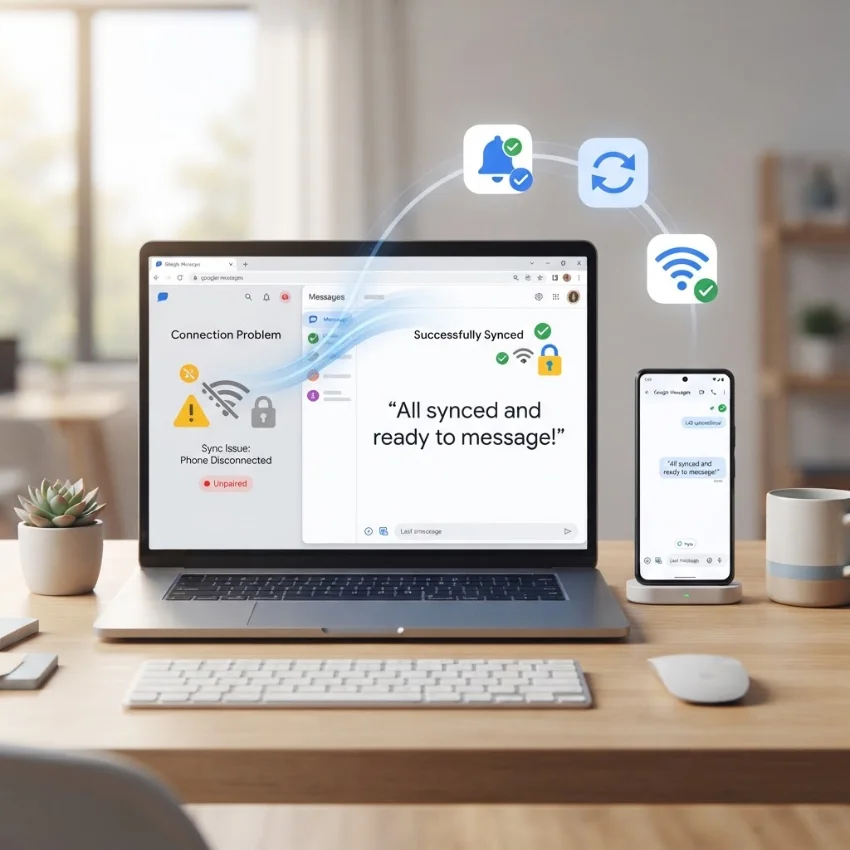
Even a simple tool runs into hiccups sometimes. Here are the fixes that actually work.
Google Messages for Web Not Syncing or Pairing
Most sync failures come down to a weak internet connection on either the phone or the computer. Try turning WiFi off and back on, then re-open messages.google.com/web. If pairing still fails, unpair every device from your phone’s Device Pairing menu and start fresh — old pairing sessions sometimes get stuck and block new ones.
Notifications Not Working on Desktop
Check your operating system’s notification settings first, since browsers and wrapper apps need explicit permission to show alerts. On Windows, confirm the app is added to your Start Menu, and that Show notifications in action center is switched on. On a Mac, check System Settings under Notifications and make sure the browser or app isn’t muted.
Is There Google Messages for Desktop on Mac or Linux
Yes. The official web client works on Mac through Safari or Chrome with zero extra setup. For a standalone app feel, the open-source wrapper on GitHub builds separate packages for Windows, macOS, and Linux, though that particular project is now in maintenance mode, meaning it still works but won’t receive new features going forward.
FAQs
Is there Google Messages for desktop?
Yes. Google offers an official browser-based version called Google Messages for Web at messages.google.com/web. There is also a range of unofficial, open-source desktop wrapper apps built by independent developers for Windows, Mac, and Linux.
Is there a Google Messages app for PC?
Not as a Google-branded download from Google itself. Instead, PC users rely on the web version through a browser, or on third-party Electron-based apps that package that same web tool into a standalone program with its own icon and notifications.
How do I add Google Messages to my PC?
Open Google Messages on your phone, tap the account icon, select Device Pairing, then visit messages.google.com/web on your computer and sign in with the same Google account. The two devices pair automatically, and your texts appear on screen right away.
How do I create a shortcut to Google Chat on my desktop?
In Chrome, open the Google Messages web page, click the three-dot menu, choose Cast, save, and share, then select Install page as app. A shortcut icon will appear on your desktop or taskbar that launches the chat like a regular program.
Conclusion
Setting up Google Messages on a computer is quick, free, and genuinely useful once it’s running. Between the official web client and the open-source desktop wrappers, there’s an option for every operating system, and the 100+ messages above should save a few minutes the next time you’re typing on the go.

Founder & Content Writer, ShortMesages.com
William Sanwal is the founder and lead writer behind ShortMesages.com, a website dedicated to helping people find the right words for every moment in life.