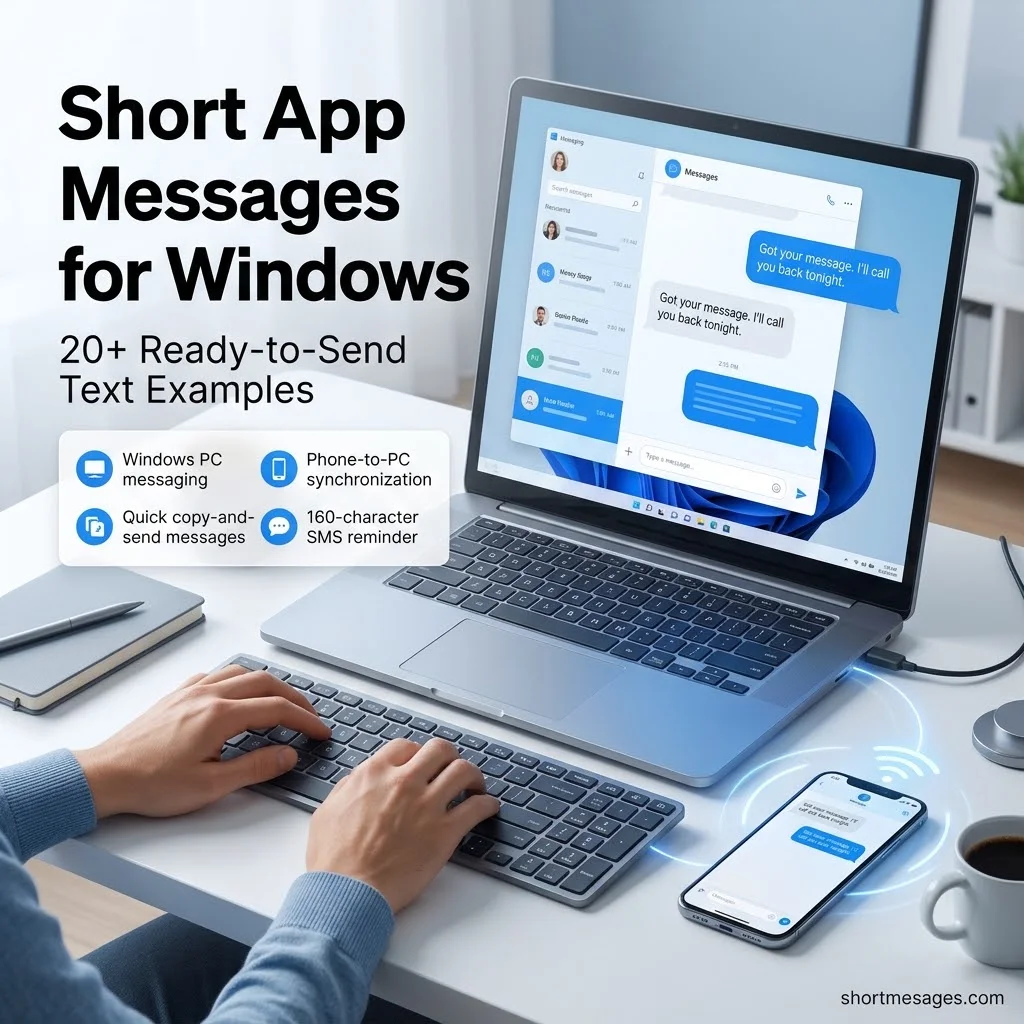
Typing long texts on a small phone screen is slow. Short app messages for Windows let you reply fast from a full keyboard.
This guide shows the best Windows messaging apps, 24 copy-ready messages, and the steps to send text messages from your PC.
Table of Contents
What Are Short App Messages for Windows?
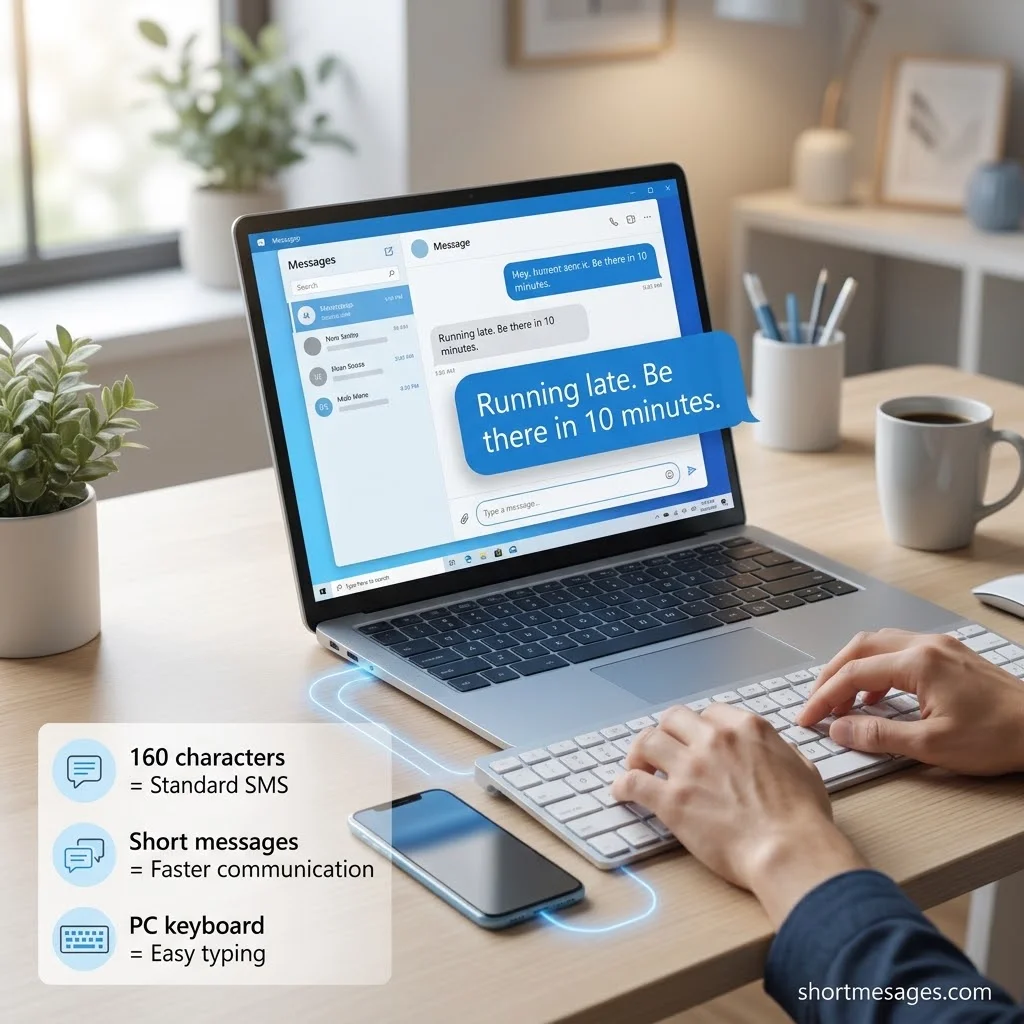
Short app messages for Windows are brief texts you send from a PC through a messaging app. The app links to your phone or your own number, so people see a number they already know.
Clear communication is important not only when using Windows apps but also when creating a safer workplace. Sharing short safety messages for work can help employees stay alert, follow safety rules, and prevent accidents through simple, easy-to-remember reminders.
Most carriers cap one plain SMS at 160 characters. That is the standard for GSM-7 text. Add one emoji and the limit drops to 70 characters. Each emoji also counts as two of those characters.
Even curly quotes can trigger this switch. That is why the messages below use plain apostrophes and no emoji.
A message over 160 characters splits into parts of 153 characters each. Short messages avoid that split. They also read faster.
Best Apps to Send Short Messages on Windows PC
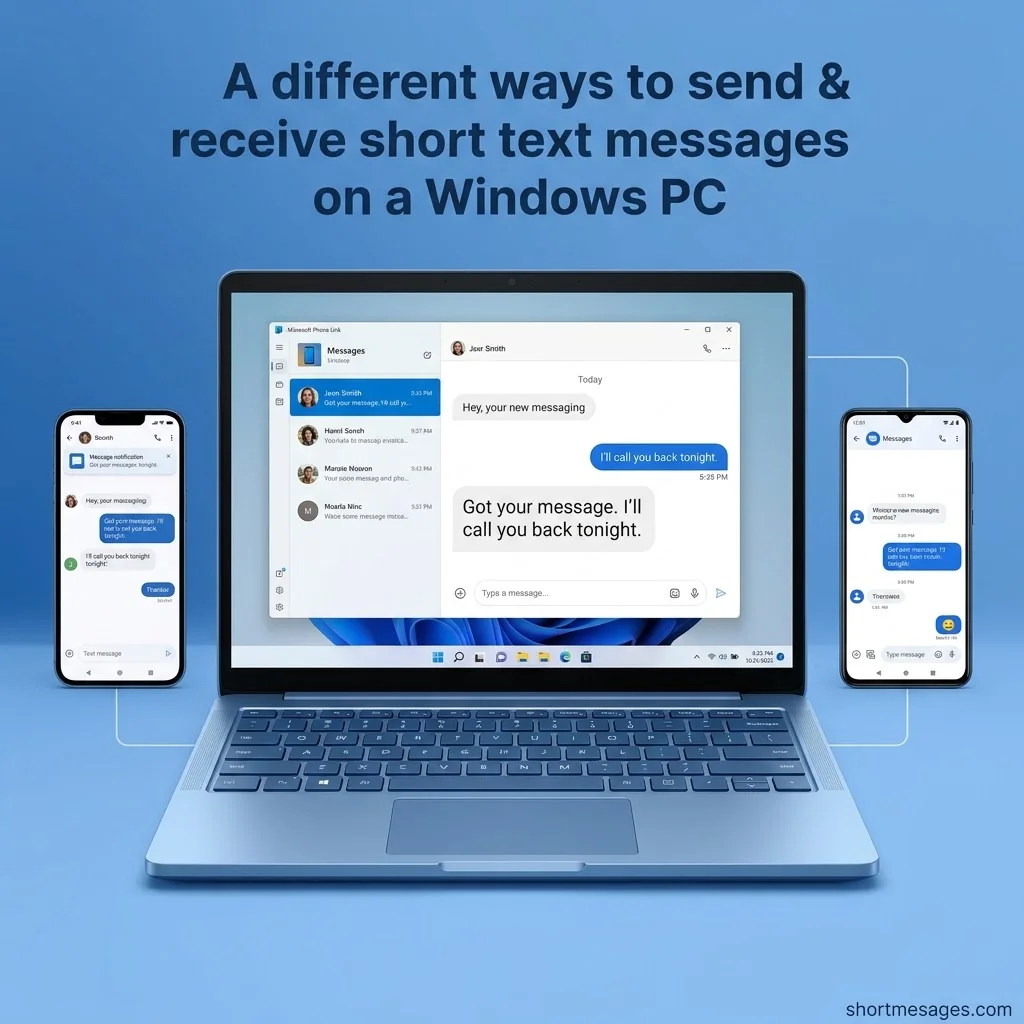
Most apps work the same way. They mirror the texts on your phone to your PC. Here is a quick look at the main options.
Plans and limits change often, so check each app’s page before you pay.
iPhone users have fewer choices. Phone Link uses Bluetooth to link an iPhone running iOS 14 or later, and it needs Windows 11. Messages are session based. You won’t see texts that arrived while the phone was not connected.
Also know that two-factor codes sent by SMS can show up in Phone Link once you grant message access. Use a private PC.
Some MightyText reviews mention dropped connections. Test any app with a few messages before you rely on it.
20+ Short App Messages for Windows (Copy and Send)
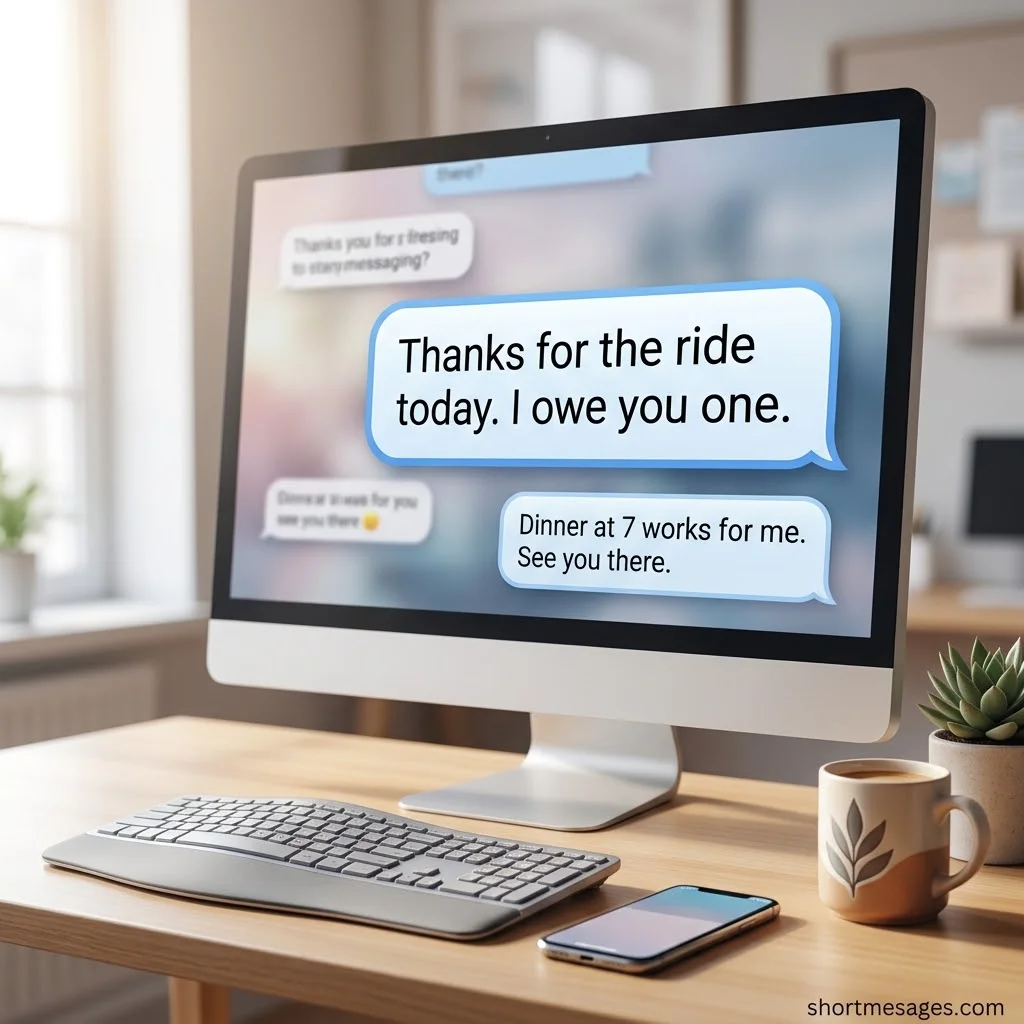
Each message stays under 160 characters, so it fits in one SMS. Copy one, paste it into your app, and send.
Start with quick personal texts for friends and family.
Running late. Be there in 10 minutes.
Got your message. I’ll call you back tonight.
Thanks for the ride today. I owe you one.
Happy birthday! Hope your day is full of cake and good news.
Just landed. I’ll text you when I get to the hotel.
Dinner at 7 works for me. See you there.
These short work messages keep your team on track.
Got it. I’ll send the report by 3 PM today.
Can we move our call to 2 PM? Let me know.
I’m in a meeting right now. I’ll reply within the hour.
Please check your email. I sent the updated file.
Thanks for the quick help. That fixed the issue.
Reminder: team stand-up starts at 9:30 AM tomorrow.
Small businesses can use these appointment and customer messages. Always name your business in the text.
Hi, this is Maple Dental. Your visit is tomorrow at 10 AM. Reply C to confirm.
Your order has shipped and should arrive by Friday. Reply HELP for support.
Thanks for visiting today! Reply with any questions. We’re happy to help.
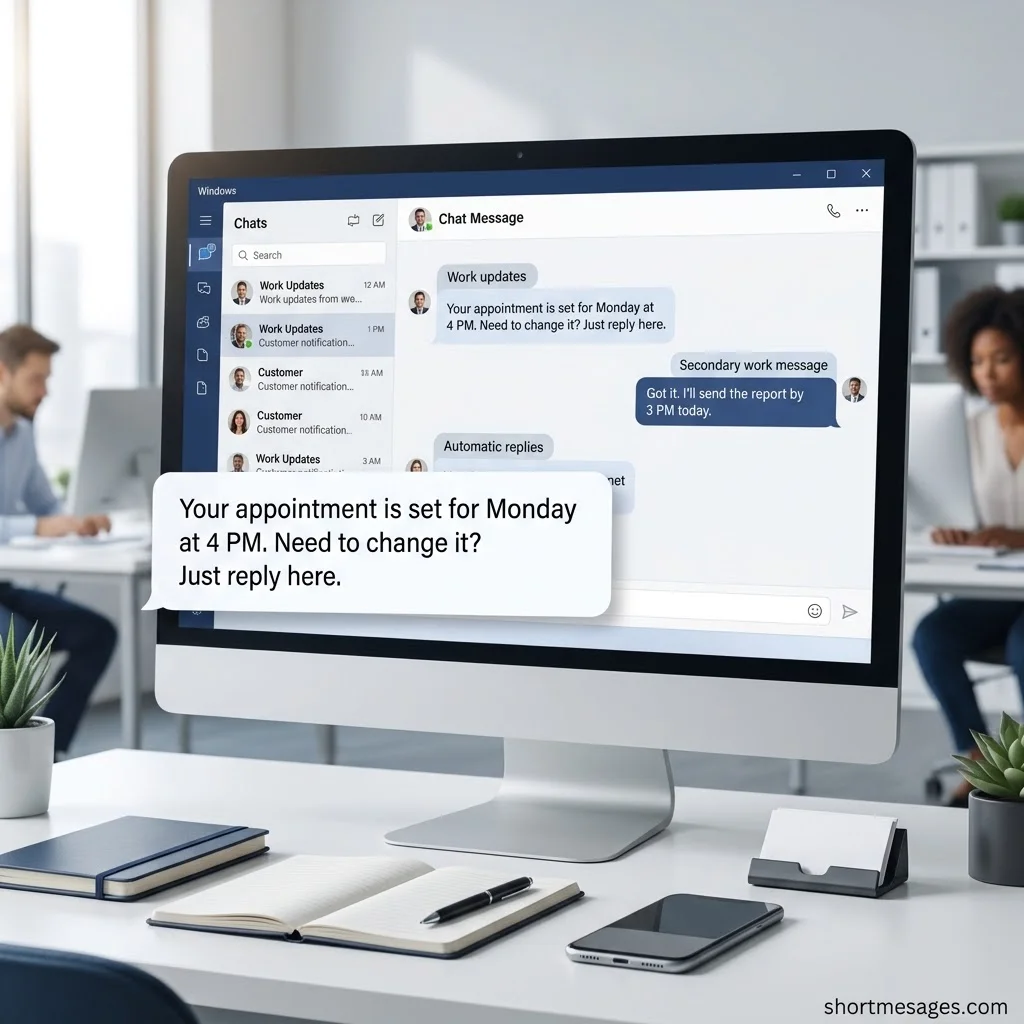
Your appointment is set for Monday at 4 PM. Need to change it? Just reply here.
Your invoice is ready. Please reply if you have questions.
You’re signed up for Oak Street Gym updates. Reply STOP anytime to opt out.
Last, use these auto-reply and “away from PC” messages when you can’t answer right away.
Thanks for your text. I’m away from my phone and will reply soon.
I’m driving right now. I’ll text you back when I park.
I’m out of the office until Monday. For urgent matters, please call the main line.
Got your message. I’m on it and will update you today.
Busy right now. Can I text you back in 30 minutes?
Thanks for reaching out. Our team is open 9 to 5 Eastern, Monday to Friday.
How to Send and Get Short Messages on Windows PC
The easiest way to get messages on a Windows PC is to link your phone. Pick the method that fits your phone.
To use Phone Link:
- Open Phone Link on your PC and pick Android or iPhone.
- Install the Link to Windows app on your phone and pair the two devices.
- Allow access to contacts and messages when asked.
- Select Messages, then New message.
- Enter a name or number, type your text, and press Enter.
Microsoft’s step-by-step guide covers the same flow. Phone Link shows texts from the last 30 days. You also can’t delete messages from the PC.
To use Google Messages for web:
Open the web page and pair it with your Android phone. Google is moving pairing to your Google account with an emoji match. Google’s support page now says QR sign-in is no longer available in the US. Some users still see it, though.
Turn on “Remember this computer” only on your own PC. Unpair when you finish on a shared one. Carrier fees still apply, just like on the phone.
Quick tips for sending short messages:
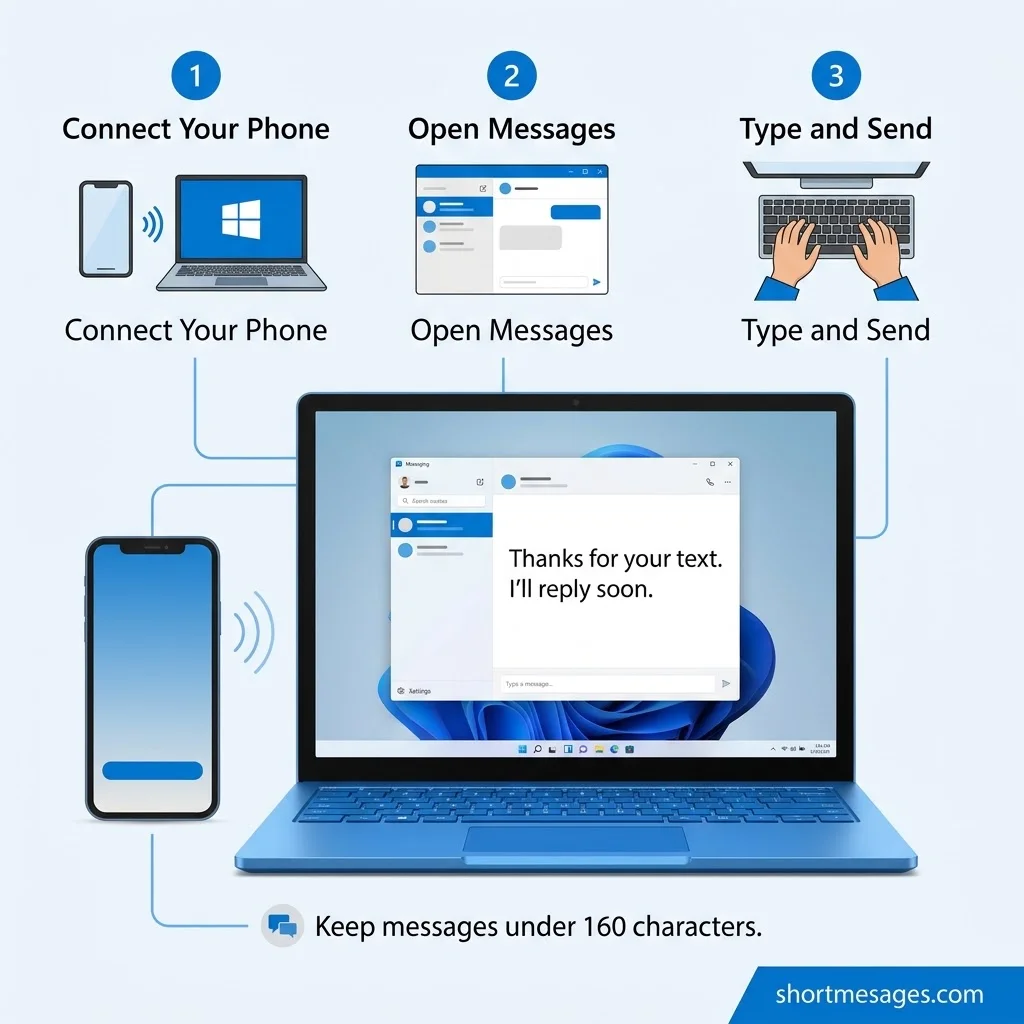
- Keep each text under 160 characters.
- Skip emojis if you want the full length.
- Save your top messages as templates.
Texting customers? The FCC requires prior express written consent for marketing texts. Its 2024 order also says senders must honor opt-out requests within 10 business days. Rules change, so check the FCC for the latest.
FAQs
What is the best messaging app for PC?
For most people, Microsoft Phone Link is the best messaging app for PC. It is free and works with Android and iPhone. It sends SMS, photos, emojis and GIFs. iPhone support needs Windows 11 and Bluetooth, and it has limits.
What is the best PC message app?
It depends on your need. Phone Link suits most users. Google Messages for web suits Android users who want a browser tab. MightyText adds scheduling. QuickText SMS suits personal bulk texts from a contact list.
How to get messages on Windows PC?
Link your phone to your PC. Open Phone Link, pair your Android or iPhone, and allow message access. Then open the Messages tab. You can also use Google Messages for web on Android and pair it in your browser.
Is there a free SMS messaging app for PC?
Yes. Phone Link and Google Messages for web are free to use. Your carrier’s normal text fees still apply. Many third-party apps also have free plans, but they often cap features or monthly messages.
Conclusion
Short app messages for Windows save time and keep replies clear. Pick an app that fits your phone, such as Phone Link or Google Messages for web.

Founder & Content Writer, ShortMesages.com
William Sanwal is the founder and lead writer behind ShortMesages.com, a website dedicated to helping people find the right words for every moment in life.