Texting from a phone screen is slow. If you own an iPhone and work on a Windows computer, you already know the struggle of switching between devices just to send a quick reply.
This guide gives you real solutions for using Apple Messages on PC, plus over 100 ready-to-use short texts you can copy and send right away.
Table of Contents
What Is Apple Messages on PC — And Why People Search for It
Apple Messages, known as iMessage, is Apple’s built-in chat service for iPhone, iPad, and Mac. It’s the reason many texts on an iPhone show up as blue instead of green.
Must visit: 70+ Short Messages for Loss of Father to Offer Comfort, Sympathy & Support
iMessage was introduced with iOS 5 in 2011, and according to Apple’s own developer documentation, it now handles billions of messages daily across Apple devices. That popularity is exactly why so many Windows users go searching for Apple Messages for PC.
The catch is simple. iMessage is built using Apple’s private frameworks, which only run on iOS, iPadOS, and macOS. There’s no official Windows version, and Apple has never released one. This is also why blue bubbles turn green the moment a Windows or Android device joins the chat, since the conversation switches from iMessage to standard SMS or RCS messaging over the cell network.
Knowing this difference matters because it shapes which solution actually works for Apple text messages on PC, which we’ll break down next.
How to Get iMessage on PC (Every Real Method, Compared)
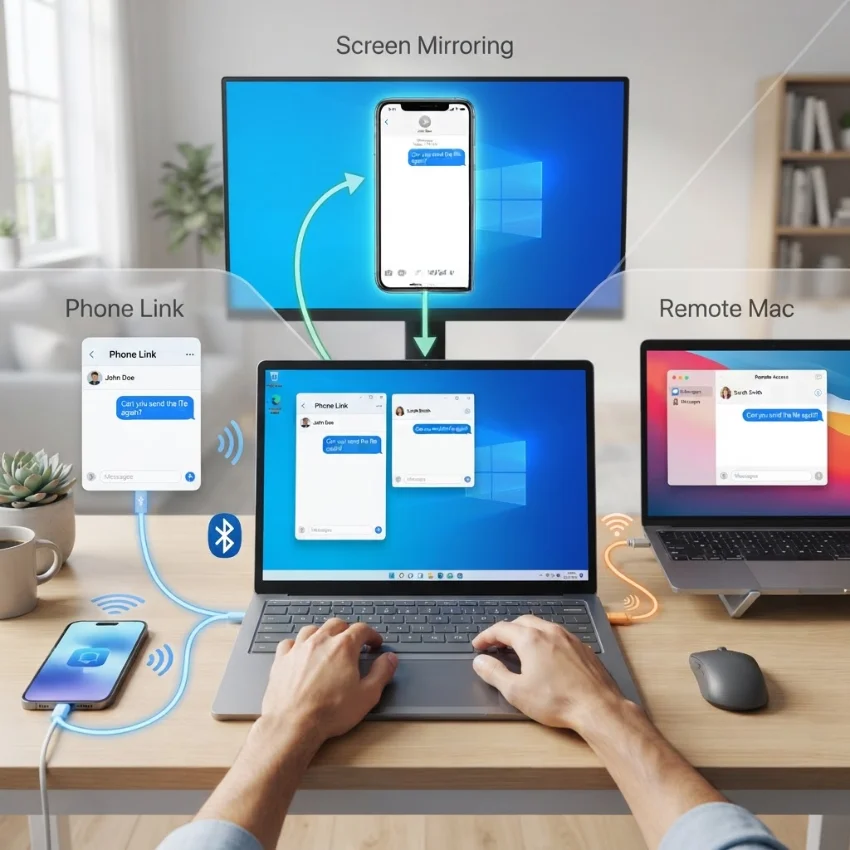
There’s no single official app, but there are several legitimate ways to bring iMessage on PC closer to reality. Each one works differently, so picking the right one depends on your setup.
Microsoft Phone Link is the most widely used option. It’s a free, built-in Windows app that connects to an iPhone over Bluetooth. Once linked, it lets you send and receive individual text messages, view notifications, and even make calls from your PC. Group chats and photo sharing are not supported yet, according to Microsoft’s official Phone Link documentation.
Screen mirroring tools are another route. Apps that mirror an iPhone screen onto a Windows display let you open the actual Messages app and type using your PC keyboard. This method shows the full app, including group chats, but usually needs a paid subscription for smooth, low-lag performance.
Remote desktop access to a Mac is a third option. If you own or can access a Mac, tools like Chrome Remote Desktop let you control that Mac’s Messages app from a Windows browser. This gives full iMessage functionality, but only works if a Mac stays powered on and connected.
Emulators and jailbreak methods also show up in search results. These are not recommended. Jailbreaking removes built-in security protections, and Apple has confirmed that iMessage encryption cannot be guaranteed once a device is jailbroken, according to Apple’s platform security guide. These methods also tend to break after every iOS update.
The safest, most reliable choice for most Windows users right now is Microsoft Phone Link, paired with a screen mirroring app for anyone who needs group chats or photos.
100+ Short Apple Messages for PC (Ready-to-Send Quick Texts)

Once your iMessage on PC setup is working, having quick messages ready saves real time. Below are more than 100 short texts sorted by situation. Each one is ready to copy and send.
Quick Check-In Messages
Hey, just checking in on you.
How’s your day going so far?
You free to talk later?
Just thinking about you, hope you’re good.
Quick check in, everything okay?
Hey stranger, how’s life?
Been a while, how are things?
Hope your week is going smoothly.
Checking in, no rush to reply.
Hey, thinking of you today.
How did everything go?
All good on your end?
Hope you’re having a good one.
Just wanted to say hi.
How’s everything at home?
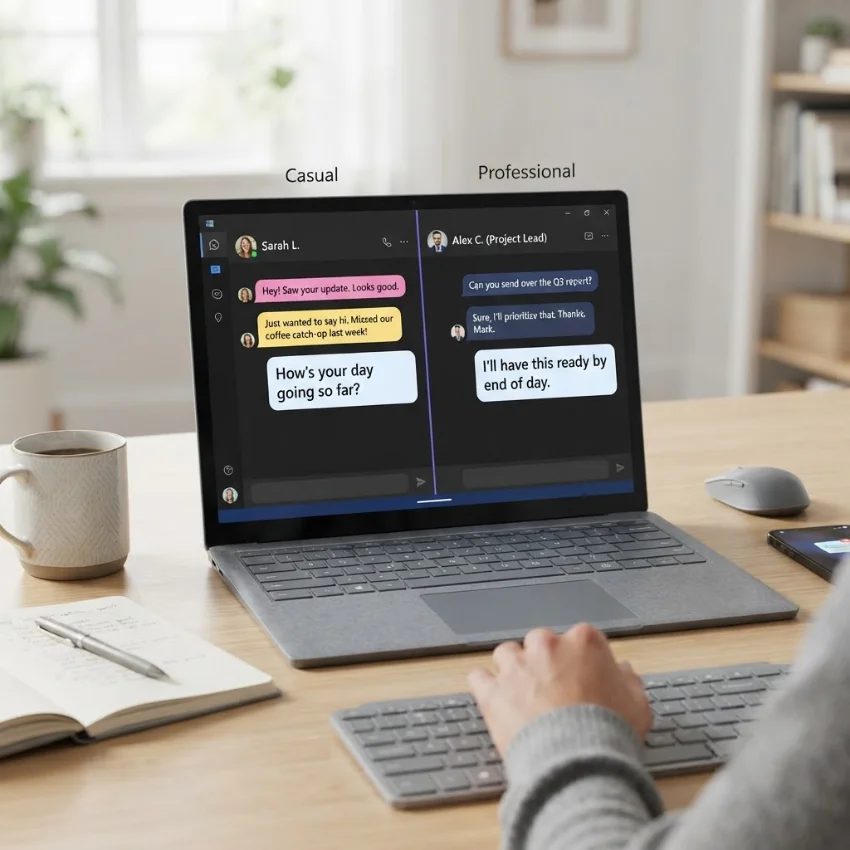
Work And Professional Replies
Got it, thanks for letting me know.
I’ll have this ready by end of day.
Sounds good, I’m on it.
Can we push this to tomorrow?
Thanks for the update.
I’ll follow up shortly.
Let’s connect after lunch.
I’ve reviewed it, looks great.
Running a few minutes behind schedule.
Can you send the file again?
Approved, go ahead and proceed.
I’ll loop in the team.
Let’s schedule a quick call.
Thanks for your patience on this.
I’ll get back to you shortly.
Funny And Casual One-Liners
I put the fun in dysfunctional.
Send snacks, this is an emergency.
Currently avoiding all responsibilities.
My bed is calling and I must go.
Coffee first, words later.
I’m not lazy, I’m on energy saving mode.
Living my best chaotic life.
This is fine, everything is fine.
I run on caffeine and bad decisions.
Send help or snacks, either works.
Pretty sure adulting is a scam.
I peaked in the group chat.
My superpower is finding the worst timing.
Currently plotting my nap.
I’m allergic to Mondays.
Family And Friends Quick Texts
Miss you, let’s catch up soon.
Family dinner this weekend?
Can’t wait to see everyone.
Thinking of you, call me when free.
Let’s plan something fun soon.
You always make me laugh.
So glad we’re family.
Let’s do a movie night soon.
Miss your face, seriously.
You’ve got this, I believe in you.
Come over whenever you want.
Life’s better with you around.
Let’s grab food this week.
You’re always in my corner.
So proud to call you family.
Love And Relationship Short Messages
Thinking about you nonstop today.
You make my day better instantly.
Can’t wait to see you tonight.
You’re my favorite person.
Missing you more than usual.
Every day with you feels lucky.
You’re stuck with me forever.
My heart smiles when I see your name.
Home feels like wherever you are.
You make everything easier.
Counting down until I see you.
You’re my favorite hello and hardest goodbye.
Loving you is my favorite thing.
You’re the best part of my day.
Forever grateful for you.
Thank You, Congrats And Condolence Messages
Thank you so much, it means a lot.
I really appreciate everything you did.
Congratulations, you earned this.
So proud of you, well done.
Thank you for always showing up.
Sending love during this tough time.
So sorry for your loss.
Here for you, whatever you need.
Thinking of you and your family.
Congrats on the new milestone.
Thank you for your kindness.
You deserve every bit of this success.
Sending strength your way today.
Grateful to have you in my life.
Wishing you comfort and peace right now.
Emergency And Logistics Texts
Running ten minutes late, sorry.
Can you call me right now?
Change of plans, meet me here instead.
Traffic is bad, I’ll be delayed.
Need you to pick this up urgently.
Car trouble, might be late.
Please call as soon as you can.
Meeting moved up, come now.
Something came up, can we reschedule?
On my way, be there soon.
Emergency, please respond when free.
Flight delayed, will update you soon.
Need directions, send location please.
Running behind, start without me.
Plans changed last minute, sorry for the notice.
Apple Messages on PC Features You Actually Get
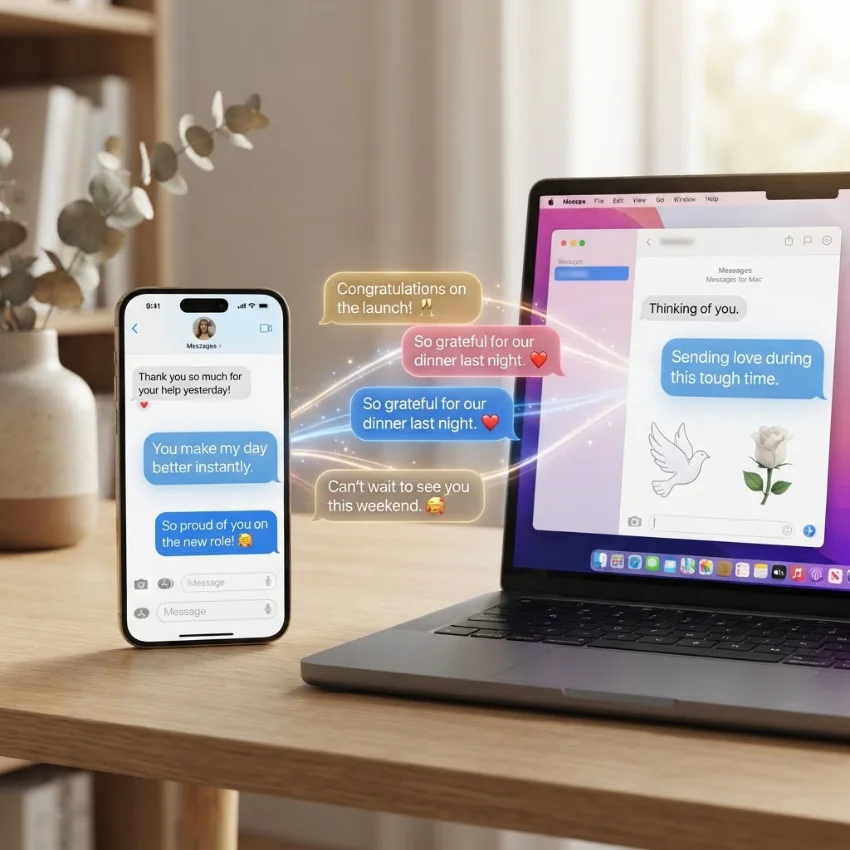
Depending on the method used, the features available for Apple Messages on PC change quite a bit. Knowing what to expect helps set the right expectations before setup.
Blue and green bubbles still follow the same rule on PC as they do on iPhone. Messages sent between iMessage users stay blue and encrypted end-to-end, while messages involving a non-Apple device or carrier network turn green and run over SMS or RCS.
Group chats are supported through screen mirroring and full Mac remote access, but not through Phone Link’s direct messaging feature. This is one of the biggest limitations Windows users run into.
Typing indicators, emojis, and read receipts generally carry over fine through mirroring tools, since the actual Messages app is being viewed and controlled directly. Phone Link supports emoji and basic reactions but has more limited functionality overall.
Photos, tapbacks, and message editing are the features most often missing. Apple added message editing and unsending starting with iOS 16, but Phone Link does not currently support these actions, based on Microsoft’s published feature list.
Choosing the right tool really comes down to which of these features matter most for daily use.
Best Apps And Tools To Use Apple Messages On A Laptop Or Desktop
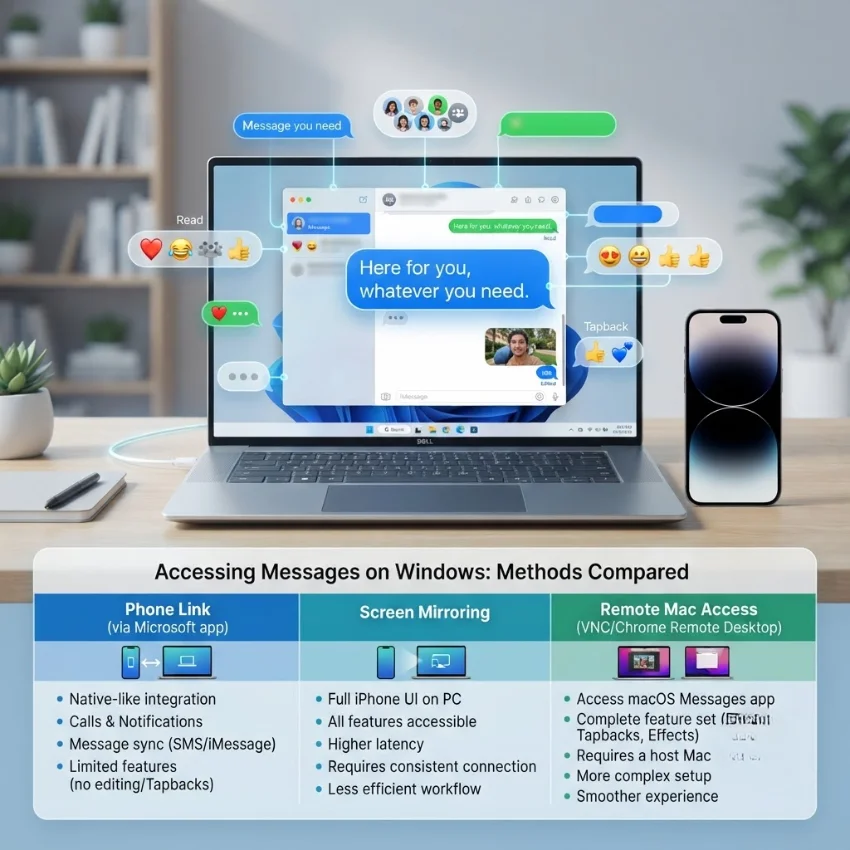
This section answers one of the most common questions people ask: is there an iMessage on a laptop or desktop? The short answer is yes, but only through third-party tools, since Apple has not released an official app.
Microsoft Phone Link works best for individual texting and quick replies on a Windows laptop. It’s free, officially supported, and simple to set up through Bluetooth pairing.
Screen mirroring apps work best for anyone who needs group chats, photos, and the complete Messages experience. These apps mirror the entire iPhone screen, so everything visible on the phone becomes usable on the laptop or desktop.
Remote access to a Mac is the most complete option, since it uses the real macOS Messages app instead of a mirrored or limited version. This requires owning a Mac that stays connected and powered on.
Browser-based access is limited right now. There is no official web version of iMessage, so anyone asking can I use iMessage on a browser will need a mirroring or remote access tool that opens in a browser tab, rather than a native Apple web app.
For most everyday Windows users, combining Phone Link with a lightweight mirroring app covers nearly every use case without extra cost.
FAQs
Can I get Apple text messages on PC?
Yes. Using tools like Microsoft Phone Link or a screen mirroring app, you can send and receive Apple text messages on PC. There’s no official standalone app from Apple, so a connector tool is required.
How to get iMessage on PC?
Install Microsoft Phone Link on your Windows PC and the Link to Windows app on your iPhone, then pair them over Bluetooth. For full iMessage features like group chats, a screen mirroring app connected to your iPhone works better.
Is there an iMessage on a laptop?
Yes, but only through third-party connector apps. Apple has not released a native iMessage app for Windows laptops, so tools like Phone Link or mirroring apps are needed to access it.
Is there a desktop version of iMessage?
No official desktop version exists for Windows. iMessage only runs natively on macOS, iOS, and iPadOS. Desktop access on Windows requires a workaround tool.
Can I use iMessage on a browser?
Not directly through Apple. There’s no official browser-based iMessage client. Some remote access and mirroring tools open inside a browser window, which comes closest to a browser experience.
Conclusion
Getting Apple Messages on PC takes a workaround, but it’s far more achievable today than it used to be. Between Phone Link, screen mirroring, and remote Mac access, most Windows users can find a setup that fits how they text. Pair that with the ready-to-use short messages above, and staying connected from a PC becomes fast and simple.

Founder & Content Writer, ShortMesages.com
William Sanwal is the founder and lead writer behind ShortMesages.com, a website dedicated to helping people find the right words for every moment in life.