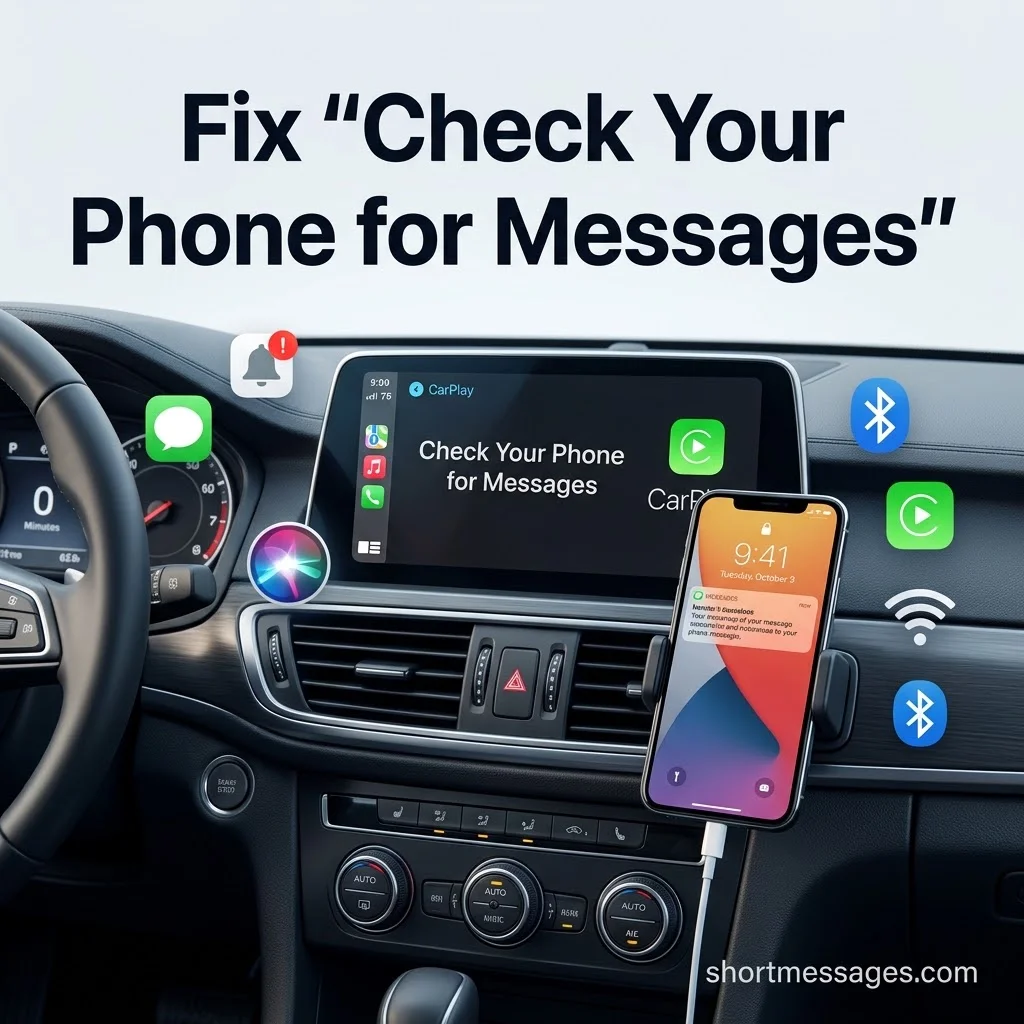
A text lands, and your car screen only says to check your phone. That is annoying, and it can be unsafe if you reach for the phone.
The fix is usually a setting, not a broken car. Below, you’ll learn what the error means and how to clear it, from the easiest step to the hardest.
Table of Contents
Why CarPlay Says “Check Phone for Messages”
Why does Apple CarPlay say “check phone for messages”? The car could not read the text aloud or show it on the screen. So it sends you to the iPhone instead.
Must visit: 75+ Short Valentine’s Messages for Girlfriend to Make Her Feel Special
Most cases trace back to a few causes:
- Announce Notifications is off, so Siri stays quiet.
- Siri is disabled or restricted.
- Driving Focus is filtering the alert.
- The sender is unknown, or the text landed in the spam filter.
- CarPlay is blocked under Screen Time.
- The USB cable or wireless connection keeps dropping.
- Messages itself is failing to send or receive.
Real users hit this too. One Apple Community thread describes a 2023 Chevy Traverse with an iPhone 16 Pro on iOS 18. The driver had re-paired the phone many times and even reset the car’s personal data. The error stayed, even with Siri announce turned on.
Quick Fixes for the CarPlay “Check Phone for Messages” Error
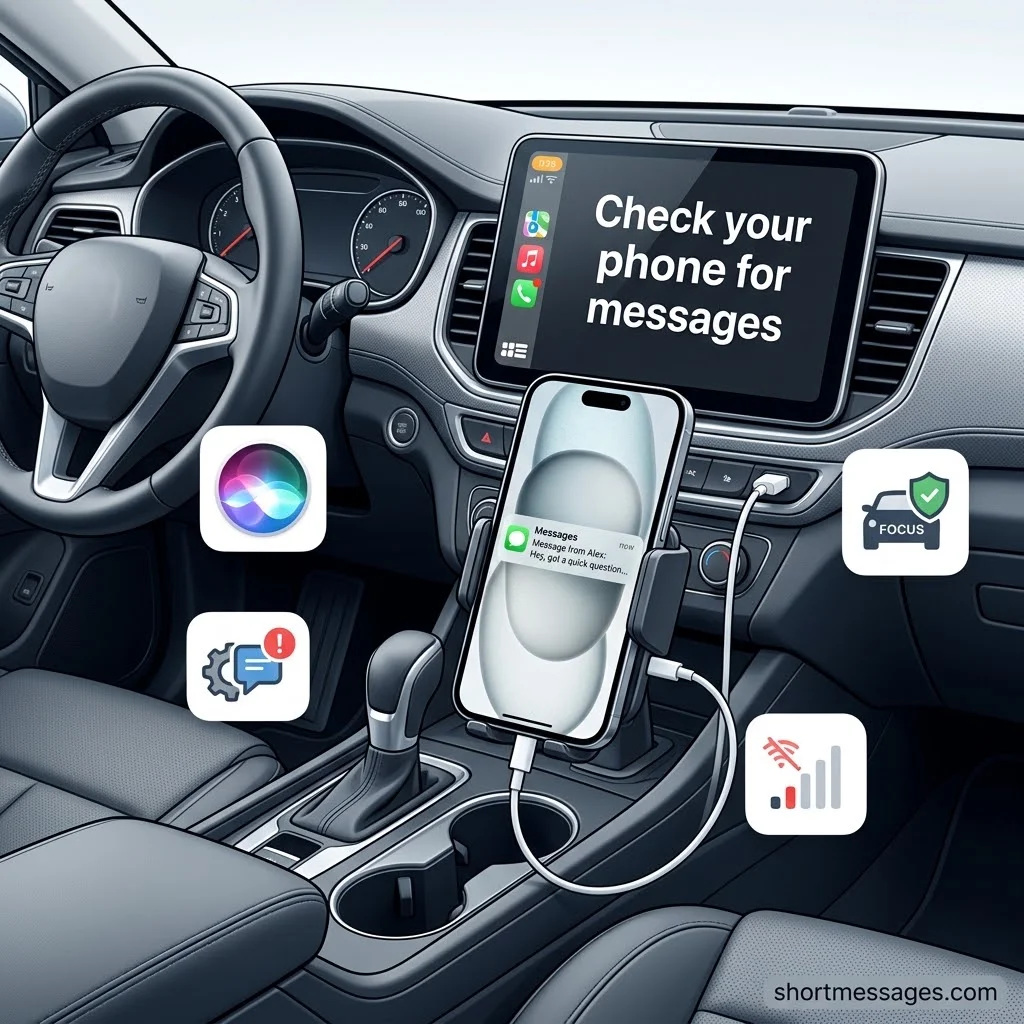
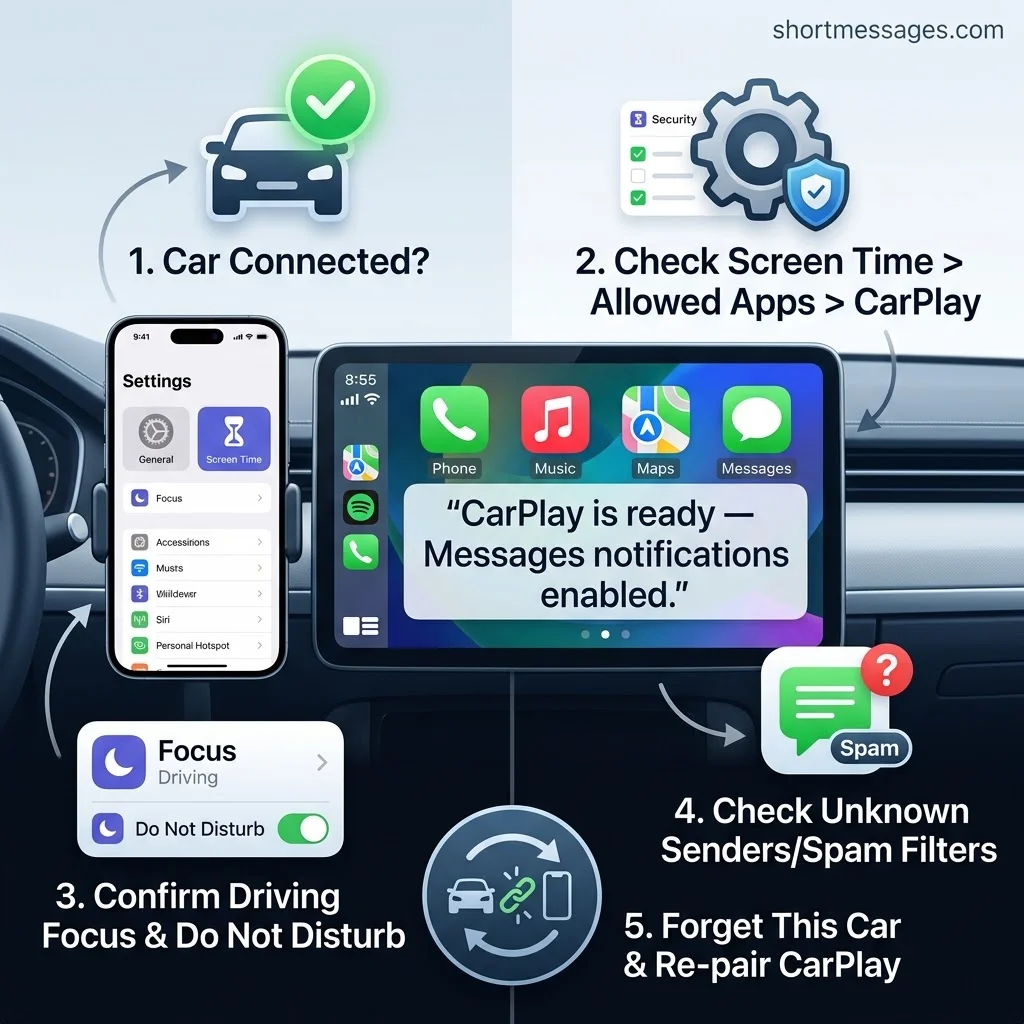
Test Messages on the iPhone first. Send yourself a text. If it fails there, CarPlay is not the problem. Apple has a page on what to do when you can’t send or receive messages.
Turn on message announcements. Open Settings and look for Announce Notifications or Announce Messages. The menu name changes between iOS versions, so use the search bar in Settings. Then open Messages settings and allow notifications. Apple explains the steps in its guide to fixing missing Messages notifications.
Check Driving Focus. This mode can mute alerts the moment CarPlay connects. If you are a passenger, tap I’m Not Driving on the notification.
Confirm Siri is on. CarPlay depends on Siri for hands-free texting. Try a short command with the car parked:
Hey Siri, read my last text.
Look at Screen Time. Go to Settings, then Screen Time, then Content & Privacy Restrictions, then Allowed Apps. Make sure CarPlay is on. Several users say an iOS update flipped this switch off.
Check spam and unknown senders. Open Messages on the iPhone and review both filters. Texts sent there may never trigger an alert.
Restart, then re-pair. Restart the iPhone and the car’s infotainment system. If that fails, open Settings, then General, then CarPlay, tap your car, and choose Forget This Car. Set it up again. Apple also advises installing the latest firmware for your car stereo.
Fix CarPlay Messages Not Working: Cable, Wireless and Car Issues
A shaky link can break Messages even when every setting is right. Think of it like a garden hose with a kink: the water is there, but it can’t flow.
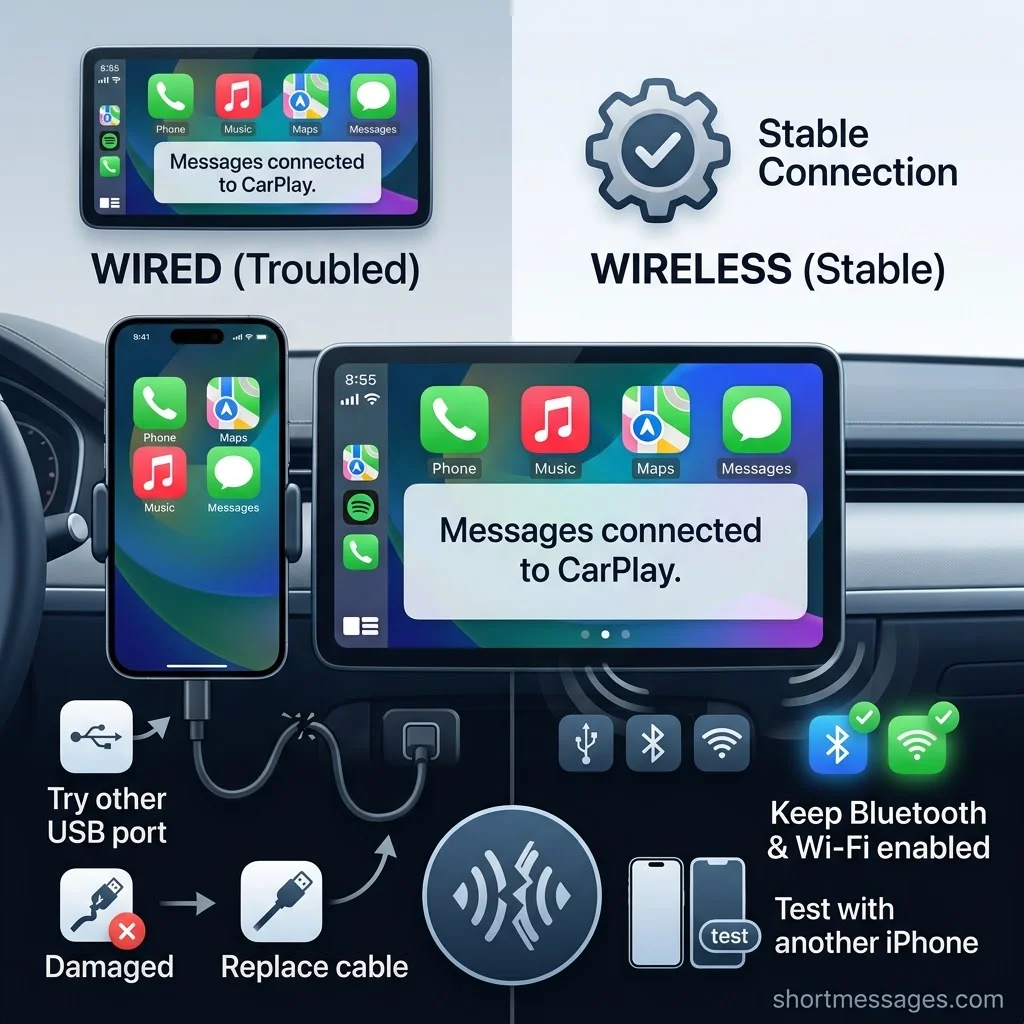
For wired CarPlay, swap the cable for a data-capable one. Try another USB port. A direct cable often works better than a USB-C to Lightning adapter.
For wireless CarPlay, check that Bluetooth and Wi-Fi are on. Keep the phone close during setup. One community fix is to forget the car’s hotspot networks in Wi-Fi settings, since CarPlay sets up its own background link.
If CarPlay drops when a text or call arrives, update iOS first. Other iPhone owners on Apple Community reported this after an iOS 18 update. Then test with a second cable, or a friend’s iPhone. That shows whether the fault follows the phone or the car.
Try these extra steps if the basics fail:
- Turn off any VPN and reconnect.
- Plug in the cable before you start the car.
- Reset the infotainment screen using your owner’s manual.
- Remove any third-party wireless adapter and test again.
Apple lists more than 800 CarPlay models, and each brand handles updates on its own schedule. Check your maker’s support page for a stereo update, whether you drive a Ford, Chevrolet, Jeep, Toyota or Honda.
When to Visit a Dealership for CarPlay Message Problems
Some faults live inside the car. In that case, no iPhone setting will help.
Book service if you see these signs:
- More than one iPhone fails.
- The USB port feels loose or looks damaged.
- The screen freezes, goes blank or reboots.
- Bluetooth will not pair.
- The trouble began after a battery change or repair.
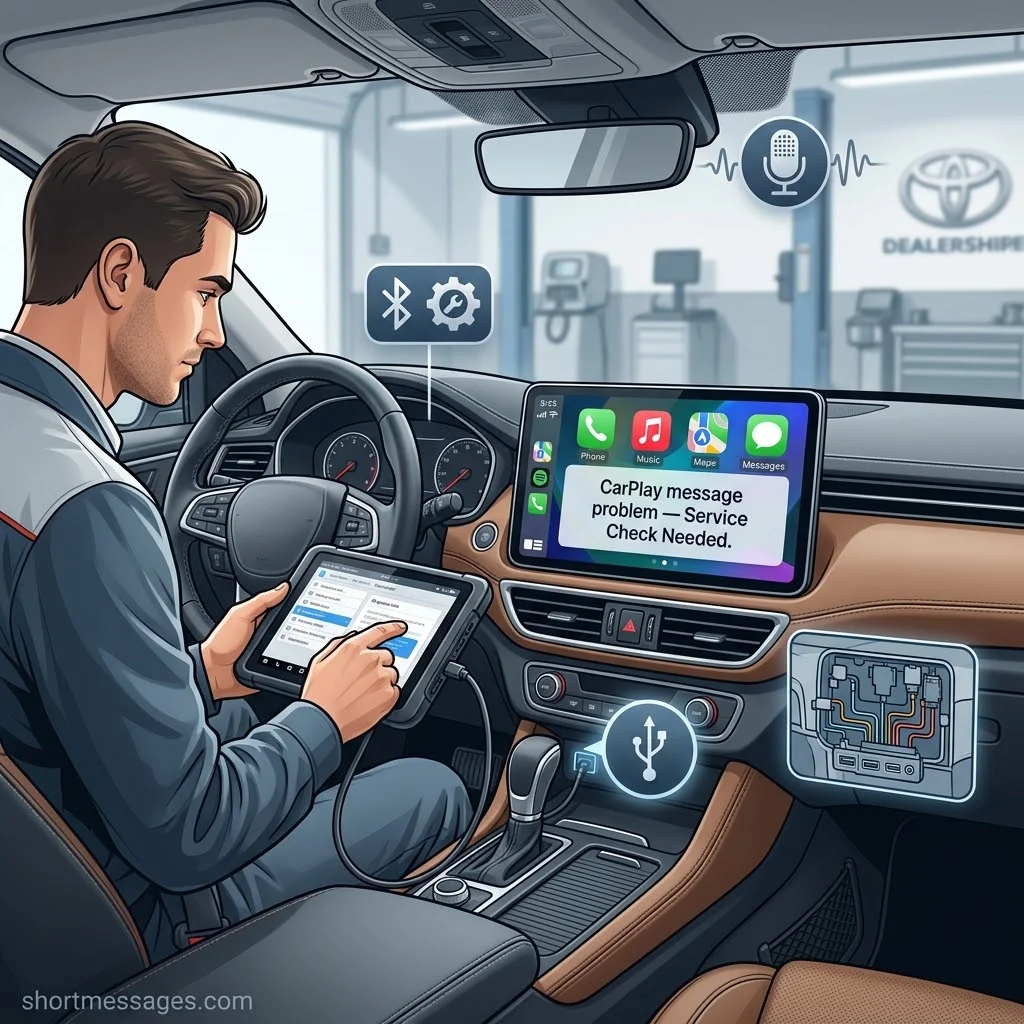
A technician can test the USB hub, wiring, microphone and firmware. Bring your iPhone model and iOS version, the car’s year and model, and whether the link is wired or wireless. Add the exact error text and the cables you tried. That saves time on the first visit.
If the phone side still seems suspect, Apple’s CarPlay help page is a good next stop.
FAQs
Why does Apple CarPlay say “check phone for messages”?
CarPlay could not read or show the text. Common causes are a disabled Announce Notifications setting, Siri limits, Driving Focus, a blocked CarPlay app, or a weak connection.
Can you check messages on CarPlay?
Yes. Open Messages in CarPlay, pick a conversation, and hear or reply to it. Apple’s Messages with CarPlay guide also covers Tapbacks and pinned chats. If the app is missing, tap Home to see every CarPlay app.
How do I get CarPlay to play my messages?
Turn on Announce Notifications and allow Messages alerts. Then ask Siri:
Hey Siri, read my messages.
Long texts may be announced by sender only, so ask Siri to read the full message.
How do I stop my text messages from showing up on CarPlay?
Turn off Announce Notifications for Messages, or limit Allowed Notifications in your Driving Focus. Menu names vary by iOS version. Note that these changes may also affect alerts outside the car.
Conclusion
The “check your phone for messages” error usually comes from a notification, Siri, Focus or connection setting. Test Messages on the iPhone first, then work through the fixes in order. If the problem stays, a dealership can inspect the car’s system.

Founder & Content Writer, ShortMesages.com
William Sanwal is the founder and lead writer behind ShortMesages.com, a website dedicated to helping people find the right words for every moment in life.